 Relistic
Photo batches (AI listings)
Upload a pile of photos and let the AI listing assistant sort them into items and write each listing for you.
A photo batch turns a pile of photos into draft listings. Shoot each item one after another, upload all the photos at once, and Relistic's AI sorts them into items and writes a title, description, condition, brand, item details and a suggested price for each. You check the drafts, fix anything, and post them.
Before you start
- Photograph one item at a time: all of item 1's photos, then all of item 2's, and so on. That's how the AI tells them apart.
- Put your best photo of each item first. It becomes the main photo.
- A photo of a label or tag helps the AI find the brand and size.
Make a batch
- Click Photo batches in the left menu.
- Click New batch.
- Drag your photos onto the box that says Drop photos here, or click to choose, or click it and pick the photos.
- Wait while the photos upload. They're shrunk on your device first, so it's quick.
- Let the AI group the photos by item, or move each photo by hand. Check each item has the right photos.
- The AI writes each listing. Each one becomes a draft item with its own SKU, like
B12-3(item 3 of batch 12).
To delete photos you don't want, tick them and click Delete. To delete a whole batch, use Delete on the batch; items already made from it keep their photos.
Review and post
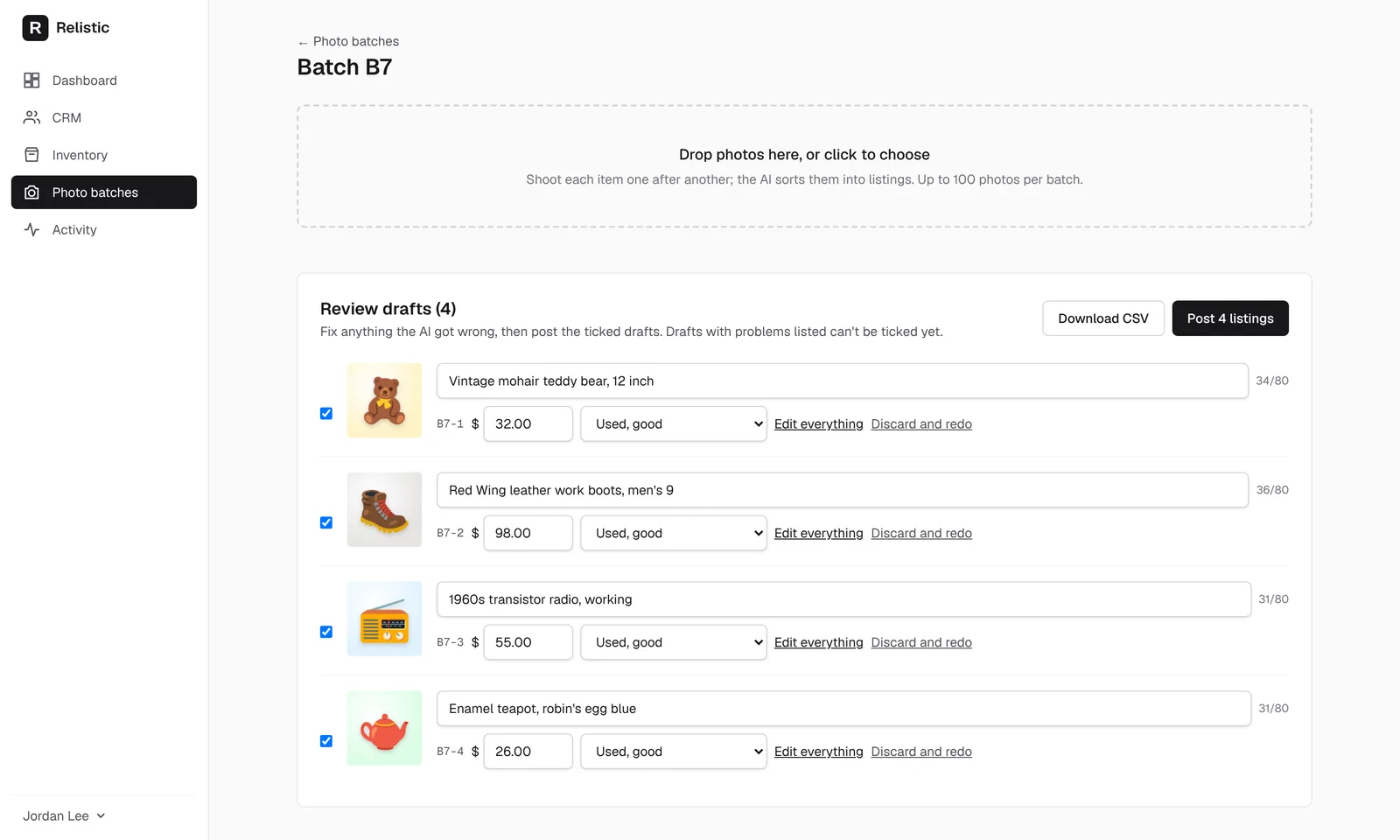
- Under Review drafts, check each title, SKU, price and condition. Change them right there if needed.
- Under Post to:, tick the stores each draft should go on.
- Click Edit everything to open the full item details right under the draft. Make your changes and click Save; you stay on the batch. (Open on its own page is there too.) Click Discard and redo to have the AI try again.
- Anything that would stop a draft posting, such as a missing category, is listed under it. Fix it first.
- Tick the drafts that are ready and click Post listings (it shows how many, for example Post 4 listings). They're listed on your stores straight away.
Click Download CSV to save the whole batch as a spreadsheet.
Schedule drafts for later
Instead of posting everything now, you can let Relistic post the ticked drafts later:
- Tick the drafts you want to schedule.
- Choose All at once and pick a start time, or Spread out: a number of listings a day, between two hours (for example 5 a day between 9 AM and 6 PM).
- Click Schedule (it shows how many, for example Schedule 20 listings).
Scheduled drafts show in the Scheduled tab in Inventory, with the time each one posts.
Draft settings
Click Draft settings on the Photo batches page to change how the AI writes:
- Title word order: drag the parts of a title (like brand, item type, size, color) into the order you like. The example shows how titles will look.
- Your own SKUs: turn on Read my SKU from a photo. Photograph a sticker or card with your own code (like BIN4-017) with each item; the AI uses it as the SKU and leaves that photo off the listing.
Click Save settings. Changes apply to drafts written from then on.
How many photos?
| Plan | Photos per batch | AI drafts a month |
|---|---|---|
| Free trial and Starter | 250 | 50 |
| Pro | 500 | 300 |
| Business | 1,000 | 1,000 |
Each item the AI writes counts as one AI draft.
If you've connected eBay, each draft also gets eBay's best-matching category, and the AI fills in the item specifics eBay asks for in that category.
Still stuck? Email angela.b@apeirosmarketing.com and we'll help.